Invoicing
When a job completes on Professional, an invoice drafts itself. Review, send by email, mark paid when paid.
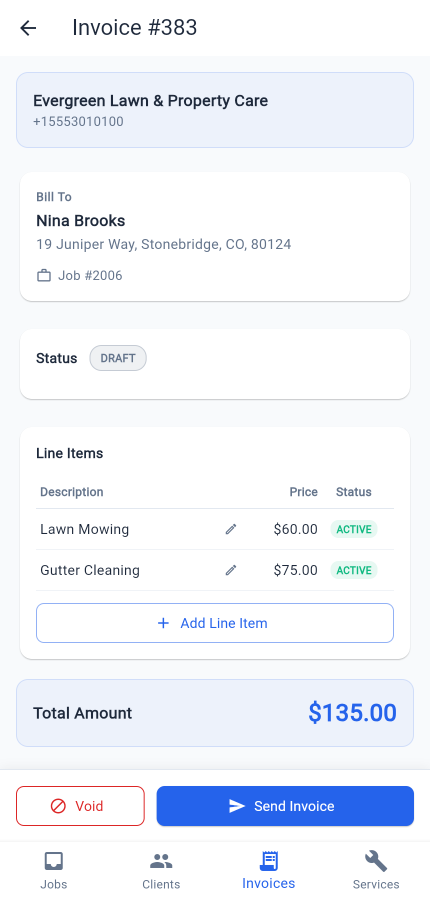
Invoicing in Mour does one thing well: it gets a clean bill in front of your client with the right line items, then tracks what's paid. Mour never touches the payment itself — you collect the way you already do, via Venmo, Zelle, cash, check, or your own card reader.
Drafted the moment a job is done
Finish a job on Professional and an invoice drafts itself, pre-filled with the services and prices you've pinned to that client's address. Open the Invoices screen to review it, tweak any line item, and send. It comes with a default due date you can change on the invoice before it goes out.
The lifecycle
- Draft — not yet sent. Edit it, void it, or send it.
- Sent — you tapped Send and the email went out, or you marked it sent after delivering another way.
- Paid — you recorded the payment once the money landed.
- Overdue — sent and past its due date. Flagged automatically so it never slips your list.
- Voided — cancelled with a reason. It stays in the record for your books.
Send it as an email
Open a draft, tap Send, and confirm. The invoice goes out as an HTML email to the address on the client's record — no PDF to wrangle, the email is the invoice. It's sent from your business email-from, which you set in Settings → Business Profile.
Send on completion, if you want
Prefer to skip the review step? Turn on auto-send and a finished job's invoice emails the client automatically. It's off by default — Mour drafts and waits for you unless you flip it on.
Record the payment
When the money lands, open the invoice, tap Record Payment, and fill in the date and method — cash, check, Venmo, your card reader, whatever you used. Mour marks it Paid and keeps the record straight.
How it works
- Complete a job on Professional — the invoice drafts automatically with the address's service prices.
- Open Invoices, review the draft, edit line items if needed.
- Tap Send to email it (or mark sent if you delivered another way).
- When payment lands, tap Record Payment with date and method.
- Overdue invoices are flagged automatically so they don't get lost.
Good to know
- Available on the Professional plan.
- Mour records what you collect — it never processes the payment, so you get paid however you already do (Venmo, Zelle, cash, check, or your own card reader).
Plan:included on Professional and up.